How to view clipboard history on Mac
Your Mac copies things brilliantly and remembers almost none of it. Here's how to see what's on your clipboard right now using the built-in tools, what those tools can't do, and how to keep a full, searchable history of everything you copy.
If you've ever copied a link, gotten distracted, copied something else, and watched the first thing vanish — you've met the Mac's oldest quiet annoyance. By default, macOS keeps exactly one item on the clipboard. Copy again and the previous one is gone for good.
There are a couple of built-in ways to see what's there, and one real way to stop losing things entirely. Let's go through all of them.
1. View the current clipboard in Finder
macOS has a clipboard viewer built into Finder. It shows you the single most recent thing you copied.
- Open Finder (or click your desktop).
- In the menu bar at the top, click Edit.
- Choose Show Clipboard.
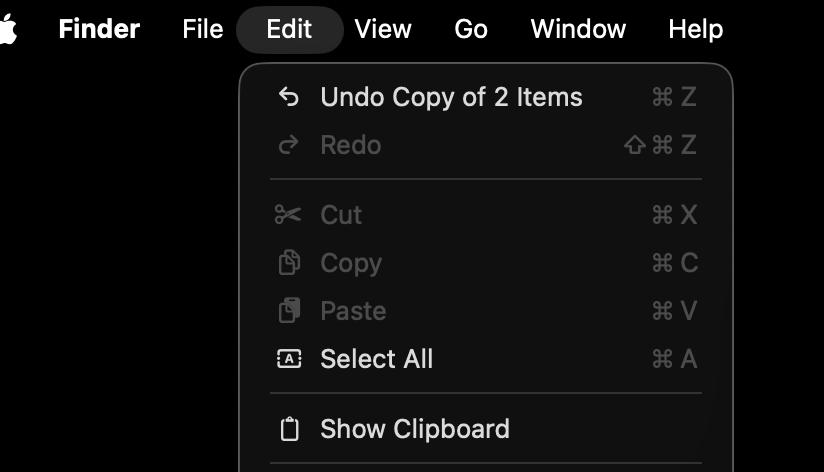
A small window appears showing your most recent copied item — usually text, or a filename if you copied a file. It's genuinely useful for a quick "wait, what's on my clipboard right now?" check.
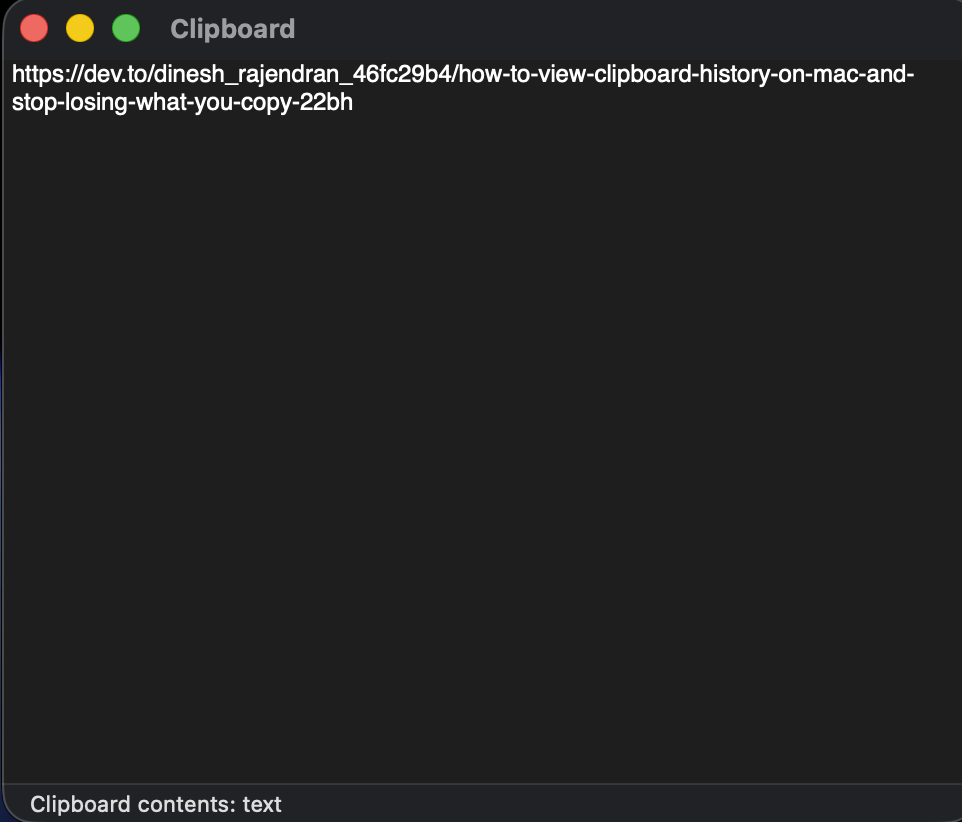
The catch: it's read-only, it shows one item, and it has no history. The moment you copy something new, whatever was there is unrecoverable.
2. Use the Spotlight clipboard history
Recent versions of macOS added a small clipboard history inside Spotlight — a step up from the Finder viewer, because it remembers more than one item for a little while.
- Press ⌘ Space to open Spotlight.
- Press ⌘ 4 (or click the clipboard section) to switch to clipboard history.
- If prompted the first time, click Enable.
- Scroll the recent items and press Return on one to copy it again.

This is a real improvement, and for a lot of people it's enough to re-grab a link they copied a few minutes ago. If that's all you need, you're done — no extra software required.
But it's deliberately minimal, and once you lean on your clipboard for real work you run into its edges fast.
Where the built-in tools stop
The Finder viewer and the Spotlight history solve "show me something recent." They don't solve "let me treat my clipboard as a memory I can rely on." Specifically:
- No lasting history. Recent items only. The snippet from this morning, the address from last week — gone.
- No real search. You can scroll, but you can't search your whole history for that API key or that paragraph you copied hours ago.
- No images or screenshots by content. You can't find a screenshot by the text inside it.
- No organisation. Everything is one undifferentiated recent list — no grouping code, links, or images.
- No protection for sensitive copies. Passwords, keys, and card numbers pass through your clipboard with no special handling.
This isn't a Mac-specific failing so much as a limit of what a single system clipboard was ever meant to do. And it matters more than it sounds, because of how much you actually copy.
How much do we really rely on copy-paste?
More than most people realise. When researchers mined the real usage data of over 20,000 developers working in an IDE, they logged millions of copy-and-paste events — and found that people constantly move fragments between different tools and file types, not just within one document. Copy-paste isn't an occasional convenience; it's a primary way we shuttle information around all day.
Other studies that logged everyday clipboard use found the same theme from the other side: people described copy-paste as a source of friction and lost work — because the one-slot clipboard quietly drops things, and there's no way to get them back. The tool we lean on hundreds of times a day is also the one with no memory.
The built-in Mac tools show you what you copied recently. What's missing is a clipboard that keeps everything, lets you search it instantly, and protects the sensitive stuff — so you never lose a copy again.
3. Keep a full, searchable clipboard history with a clipboard manager
A clipboard manager runs quietly in the background and saves each thing you copy, so your history is always there to search and reuse. This is where L2Cache comes in — it's built to be exactly the memory the Mac clipboard never had.
Everything you copy, kept and searchable
Every copy — text, code, links, images — is saved automatically. Full-text search finds anything in under 100ms, and screenshots are searchable by the text inside them via OCR. The snippet from this morning is one keystroke away, not gone.
Private by design
Your clipboard sees passwords, two-factor codes, and private messages all day. L2Cache keeps your history on your Mac — no clip content is sent to any server — and its AI features run on-device using Apple Intelligence. Sensitive copies like API keys, card numbers, and private keys are detected automatically and stored hidden until you unlock them with Touch ID.
Understands what you copied
Instead of a wall of near-identical rows, L2Cache gives code clips titles describing what the code does, groups clips into smart albums by type, and can transform content as you copy — clean up JSON, strip markdown, fix formatting. It turns raw clipboard history into something you can actually navigate.
Never lose a copy again
L2Cache keeps unlimited clipboard history on your Mac, searchable in a keystroke, private by default. Free while in early access — join now and keep it free for good.
Download L2Cache for MacmacOS 13 Ventura or later · No credit card
Frequently asked questions
Can you see clipboard history on a Mac?
By default a Mac stores only the last item you copied — view it via Finder's Edit → Show Clipboard. Recent macOS versions add a short recent history in Spotlight (⌘ Space then ⌘ 4). For a full, lasting, searchable history you need a clipboard manager.
How do I view my full clipboard history on Mac?
The built-in tools only show recent items. To keep and search everything you've ever copied — including images by their text — install a clipboard manager such as L2Cache, which saves each copy automatically and stores it locally on your Mac.
Does macOS have a built-in clipboard history?
Recent macOS versions added a basic clipboard history in Spotlight that lets you re-copy a recent item. It doesn't offer unlimited history, full-text or OCR search, organisation, or protection for sensitive copies — which is where a dedicated clipboard manager helps.
Is a clipboard manager safe to use?
It depends on the app. Because a clipboard manager records everything you copy, choose one that stores your data locally rather than on a server, and that handles sensitive items carefully. L2Cache keeps everything on your Mac and hides detected passwords, keys, and card numbers until you unlock them.