How to view and search Mac command history
The Mac terminal remembers what you type, but finding that one complex curl command or ssh flag from last week can be incredibly frustrating. Here is how to use the built-in native command history, its limitations, and how power users never lose a command again.
If you spend any time in the macOS Terminal (or iTerm2/Warp), you know the feeling: you finally get a Docker build command or an ffmpeg script working perfectly with 10 different flags. A week later, you need to run it again, but you can't remember the flags.
macOS has built-in ways to recall these commands, but they have their quirks. Let's look at the standard ways to find your Mac terminal history, and then how to fix the workflow permanently.
1. Use the `history` command
The simplest way to see what you've typed recently is the native history tool.
- Open your Terminal app.
- Type history and press Return.
You will see a numbered list of your most recently executed commands. If you want to re-run a specific command, you can type an exclamation mark followed by the number (e.g., !142) and press Return.
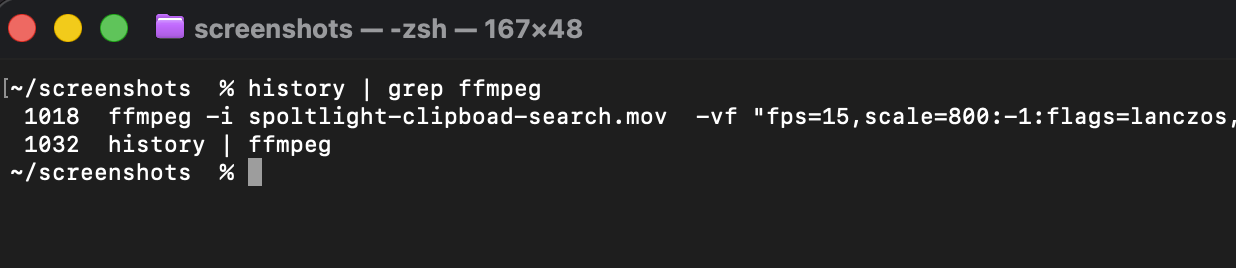
To search the list directly, you can pipe it into grep: history | grep docker
2. Reverse Search (Ctrl+R)
Scrolling through a list is tedious. If you know a piece of the command, Reverse Search is much faster.
- In your terminal window, press Ctrl + R.
- Your prompt will change to
(reverse-i-search)`': - Start typing part of the command you remember.
- The terminal will autocomplete the most recent match. Press Ctrl + R again to cycle backwards to older matches.
- Press Return to execute it, or the right arrow key to edit it before running.

Where the built-in terminal history stops
While `Ctrl+R` is a lifesaver, the native `.zsh_history` file (where macOS stores these commands by default) has several major flaws for modern developers:
- History is isolated by tabs. By default, if you have multiple terminal tabs open, commands executed in one tab aren't immediately available in the history of another until you close the session.
- No context or notes. You might find a complex `git reset` command, but you can't attach a note explaining *why* or *when* to use it.
- No cross-device syncing. Your history on your MacBook doesn't sync to your iMac.
- Truncation. By default, history files have limits (often 2000 lines). Older golden commands eventually get overwritten.
The built-in Mac terminal history is just a text file of raw commands. What developers really need is a way to capture, organize, and instantly retrieve complex CLI snippets without relying on brittle dotfiles.
3. Use a smart snippet and clipboard manager
Power users don't rely entirely on terminal history. Instead, when they write a command they know they'll need again, they save it to a snippet manager or rely on an intelligent clipboard history tool. This is where L2Cache comes in.
Never lose a terminal command
If you copy a command from StackOverflow or a coworker on Slack, L2Cache automatically saves it. If you build a complex script in your IDE, copying it means it's saved forever. You don't have to execute a command to keep it in your history.
AI-powered intelligence
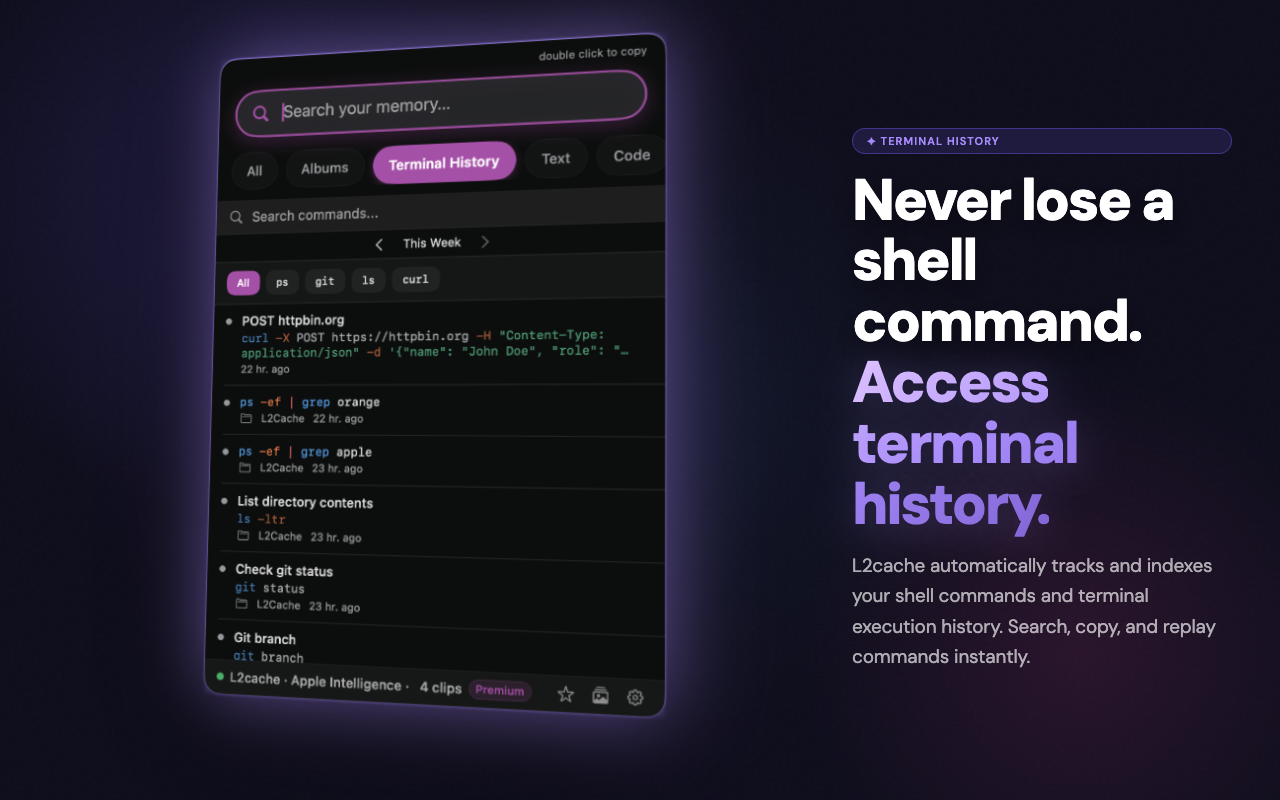
L2Cache uses on-device Apple Intelligence to understand your snippets. It can automatically group your Terminal, Git, and Docker commands into smart albums. Instead of searching for an exact flag, you can search "that command to clear dns cache" and L2Cache finds it instantly.
Private by design
Terminal commands often contain AWS secrets, passwords, and API keys. L2Cache keeps your history strictly on your Mac. Sensitive copied items are detected automatically and locked behind Touch ID, ensuring your secrets don't sit in plain text.
The ultimate developer memory
L2Cache keeps an unlimited, searchable history of your commands, code, and snippets. Free while in early access — join now and keep it free for good.
Download L2Cache for MacmacOS 13 Ventura or later · No credit card
Frequently asked questions
How do I see my command history on a Mac?
Open the Terminal and type the command history. This will print a numbered list of the most recent commands you have executed.
Where is the terminal history file located on Mac?
If you are using Zsh (the default since macOS Catalina), the history file is located at ~/.zsh_history. For Bash users, it is located at ~/.bash_history.
How do I search my previous commands in Mac terminal?
Press Ctrl + R inside your terminal to open the reverse-i-search prompt. Start typing part of the command, and it will find the most recent match. Press Ctrl + R again to cycle through older matches.